Asana/Jira Ticket Update Process

This document outlines the task-tracking system update process that needs to be performed during the project life cycle. This process is to be executed by the BLT operations staff responsible for the data management in various systems.
During a project's life cycle, a lot of tasks must be created in order to help teams collaborate, achieve project objectives, and enhance decision-making process. BLT has its own task-tracking system and uses integrations to connect with the customer's task tracking system. Integrations create new tickets in the BLT task-tracking system if they were created in the client's system and also help to constantly receive updates of statuses of the tasks.
The primary objectives of this document are to:
Provide guidance on updates to be made to the tasks created; and
Provide guidance on updates to be made to the tasks processed or/and completed.
Updating New tickets
STEP 1 New tickets created in Jira are created in Asana automatically. Due to the integrations between Jira and Asana, the following updates also happen automatically. They are also assigned to Client Backlog Tickets are assigned to [~] New
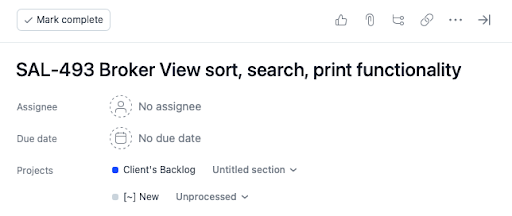
STEP 2 Next step in processing, is assigning the Epic Project to the ticket. Due to the integration, Jira Epic is in the description field. Assign the corresponding project code to the ticket.
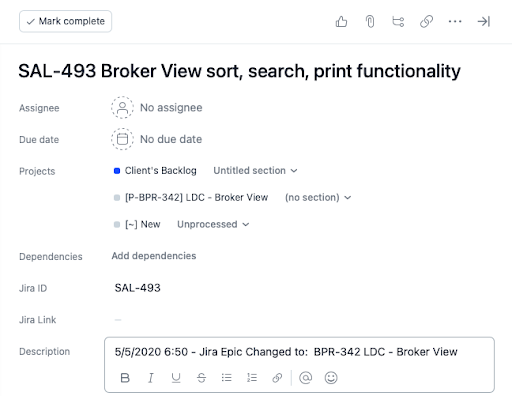
STEP 3 After adding an Epic Project to the ticket, a billing code should be added. Based on the Epic, the ticket gets either a PI billing code or SAMA.
STEP 4 After the ticket acquires a billing code, the ticket is processed, and it should be removed from the project.
Updating existing Tickets
When a ticket gets updated in Jira (either an Epic or Status change), the integration assigns the Jira change in Asana too, and the update is stated in the Description.
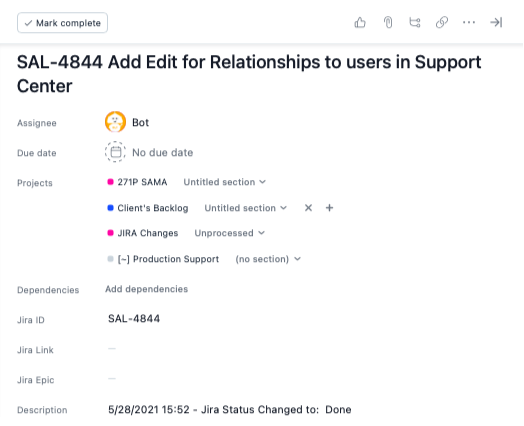
STEP 1 If the ticket has an Epic Change, change the Epic Project to the correct one.
STEP 2 After the Epic project has been changed, make sure that this Epic belongs to the added billing code. If not, change the billing code to the correct one.
STEP 3 Finally, if the ticket Status changed to Done, mark the ticket as completed in Asana.